One watch, or several of the same line?
Use an individual record for a one-off piece and quantity control for repeat lines. Replenish an existing product through a new buy-in, keeping the purchase reference with the stock change.
Jewellery and watch stock management
A watch in the safe. A ring awaiting photographs. Several of a line you sell regularly. Keep the reference, item details, quantity, location and selling status together, with stock tools that understand the difference.
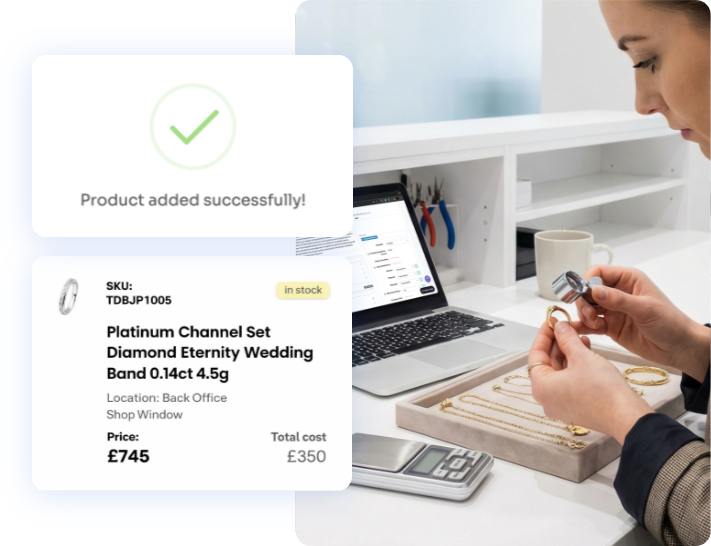
A piece can be in stock while it is being photographed or prepared for sale. Stockbox separates stock status from online visibility, including In Stock & Hide. Keep the record available to your team while you finish the work.
Use an individual record for a one-off piece and quantity control for repeat lines. Replenish an existing product through a new buy-in, keeping the purchase reference with the stock change.
Filter for purchased stock, sale-or-return items or both. Combine this with stock status and VAT-scheme filters when reviewing what you hold.
Organise products by location and sub-location. Print a location stock list with quantities, or export the stock details you need for a closer review.
Filter an export by fields such as status, price range, purchase date or product attributes. Choose the columns and download CSV or Excel, including available product, buy-in and sales details.
Add the stock reference, jewellery or watch attributes, purchase details and photographs.
Choose its location, selling mode, quantity where relevant and online visibility.
Replenish repeat lines and use the linked sales process as pieces leave the shop.
Use location lists and filtered exports to compare your records with the physical stock.
Show us your stock book or existing system. We agree the references, fields and locations you need, prepare the available data and check sample pieces with your team before launch.
Record sellers, signatures and agreements, and decide whether a buy-in creates a new product or replenishes one.
Explore buy-insUse your product records to prepare eBay listings, with help setting up the connection.
Explore eBay sellingWe agree your setup, data preparation and any additional services before you commit. See Stockbox packages
Yes. Stockbox has individual-item and quantity-controlled selling modes. A buy-in can replenish an existing stock record, with the quantity change and purchase reference recorded in its activity.
Yes. In Stock & Hide keeps the product in your stock records without displaying it on the Stockbox storefront. Connected sales channels have their own listing controls, which we review during setup.
Yes. Stock ownership filters distinguish sale-or-return and purchased items using their buy-in records. You can combine ownership with stock-status and VAT-scheme filters in location stock reviews.
The location export includes the stock reference, product name, cost price, ticket price, VAT scheme and sale-or-return indicator. Printable location lists also include quantities.
Yes. The filtered export lets you choose supported fields, matching rules and output columns. For example, select in-stock pieces within a price range. CSV and Excel formats are available.
We review your data and agree how existing references map to Stockbox. Your team checks sample items, descriptions, quantities and prices before launch. See how we plan the move.
Business know-how
A good stock record starts at the buying counter. Capture the details while the piece and the seller are in front of you, and give the rest of your team something they can work from.
Read the business guideThe last watch you sold is easy to remember. The pieces that waited months are easier to overlook. Reviewing your stock history gives your buying judgement a fuller picture.
Read the business guideWe’ll visit your shop, show you Stockbox and give your team a month’s free demo-store access.
Prefer to speak to us first?
020 4629 3701
For UK jewellers. Live setup and any additional services are agreed separately.
Tell us about your stock, locations and current records. Required fields are marked *.